
 01
01
Read from admin dashboards
Keep a signed-in dashboard open and let the agent pull its numbers and lists into a summary.
Your AI agent reads pages, clicks, and submits forms in the Chrome you're already signed in to. It works through Apple Events, the messaging layer built into macOS. No DevTools Protocol, no Playwright, no separate driver.
/plugin marketplace add dominion525/familiar/plugin install familiar@familiar
Run these two lines in Claude Code. In Cursor, Codex CLI, and other clients, add it as an MCP server.
Use cases
01
Keep a signed-in dashboard open and let the agent pull its numbers and lists into a summary.
02
Issue trackers, request forms: the agent fills them in and submits them. No need to sign in again.
03
The agent addresses its tab by windowId + tabId, so you can carry on in other tabs meanwhile.
What's different
01
familiar drives the Chrome you're signed in to, through Apple Events. Pages see an ordinary Chrome session, with no WebDriver or DevTools channel attached.
02
No DevTools Protocol, no Playwright, no separate driver. It talks to Chrome using nothing but AppleScript, which ships with macOS.
03
Every action targets a specific tab by windowId + tabId. It never depends on the active tab, so it stays out of your way while you work in another one.
All of these let an AI agent drive a browser, and most can now attach to your everyday browser with some setup. The difference is how they connect: familiar doesn't change how Chrome is launched; it just sends commands over Apple Events.
| Feature |
familiar
|
Chrome DevTools MCP | Playwright MCP | safari-mcp |
|---|---|---|---|---|
| Control channel | Apple Events | DevTools Protocol | Playwright | Apple Events |
| Browser it drives by default | Your everyday Chrome | A freshly launched Chrome | A freshly launched Chromium / Firefox / WebKit | Your everyday Safari |
navigator.webdriverwith default launch |
false |
true |
false |
false |
| Using your everyday browser | Works out of the box | --autoConnect |
Browser extension | Works out of the box |
| Approval for your everyday browser | Once | Every connection | Every connection (can be skipped) | Once |
| Platforms | macOS | macOS / Windows / Linux | macOS / Windows / Linux | macOS |
As of October 2026. The Playwright MCP value for
navigator.webdriver is for Chromium, which the MCP
server launches with
--disable-blink-features=AutomationControlled; the
safari-mcp value is taken from its README. When a tool connects to
your everyday browser, its launch flags are unchanged, so the
value stays false. (We confirmed on Chrome 154 that
attaching over the DevTools Protocol alone does not set it to
true.)
navigator.webdriver?
It tells a page whether the browser is being controlled by
automation. It becomes true when Chrome is launched
with flags such as --enable-automation. familiar
only sends commands to your everyday Chrome, so it stays
false. That doesn't mean you'll go undetected:
sites still enforce their own access controls.
Install
Run these two lines in Claude Code.
/plugin marketplace add dominion525/familiar
/plugin install familiar@familiar
The same 32 actions, available to any MCP client (Claude Code,
Claude Desktop, Cursor, Codex CLI, and more). Launch the npm
package @dominion525/familiar-mcp with
npx. Requires Node.js 20 or later.
claude mcp add familiar -- npx @dominion525/familiar-mcp@latest
Edit
~/Library/Application
                      Support/Claude/claude_desktop_config.json
.
{
  "mcpServers": {
    "familiar": {
      "command": "npx",
      "args": ["@dominion525/familiar-mcp@latest"]
    }
  }
}Edit ~/.cursor/mcp.json.
{
  "mcpServers": {
    "familiar": {
      "command": "npx",
      "args": ["@dominion525/familiar-mcp@latest"]
    }
  }
}Edit ~/.codex/config.toml.
[mcp_servers.familiar]
command = "npx"
args = ["@dominion525/familiar-mcp@latest"]Cline, Windsurf, Antigravity, and VS Code extensions (GitHub Copilot Chat, Continue, and others) use the same JSON config as Claude Desktop and Cursor. See each client's documentation for where its config file lives.
Check Once you've finished the first-run setup, ask your agent to "list the titles of my open tabs." If it lists them, you're connected.
npx skills add dominion525/familiar
The skill is unpacked into
~/.agents/skills/familiar/, where clients that
follow the agent-skills spec pick it up automatically.
osascript skills/familiar/familiar.applescript list_tabsClone the repository and run the script directly.
First-run setup
familiar needs two one-time grants to talk to Chrome: one in Chrome's settings, one in macOS.
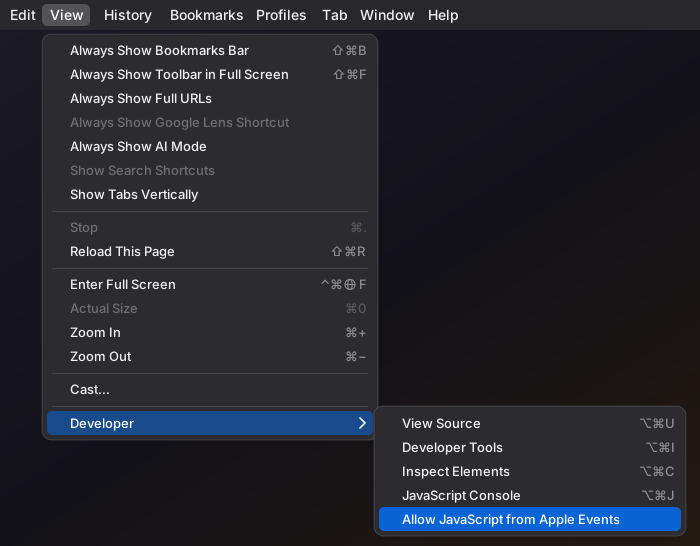
Check this item in Chrome's menu bar:
Actions that run JavaScript in the page (reading, interaction, content/script, and waiting on JS conditions) need this setting. Tab, window, navigation, history, and loading-state actions use AppleScript alone and work without it.
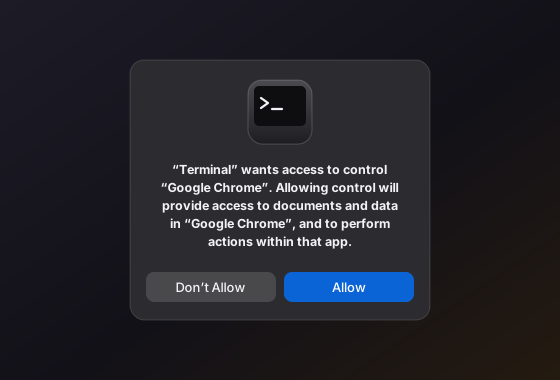
The first time familiar talks to Chrome, macOS asks for permission. Click "Allow."
You're not approving familiar itself. macOS grants automation permission to the parent process: the app that actually runs your MCP client or Claude Code (Terminal, VS Code, Cursor, Claude Desktop, and so on). You're handing that app control of your signed-in Chrome, so only approve apps you trust.
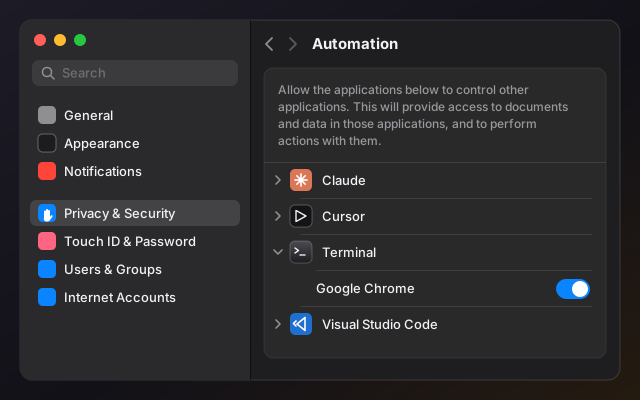
To review or change it later:
... JavaScript is turned off
"Allow JavaScript from Apple Events" is off in Chrome. Turn it on as described in step 1.
Not authorized to send Apple events to "Google
                    Chrome"
Automation permission is missing. In System Settings > Privacy & Security > Automation, turn on Google Chrome under the launching app (Terminal, VS Code, Cursor, and so on).
The prompt never appears
Run this once from the terminal that launches the MCP server. It triggers the prompt for that process, whether or not a Chrome window is open. Once you approve, you won't be asked again.
osascript -e 'tell application "Google Chrome" to get version'Permissions & data
Any client you connect to familiar gets your signed-in browser, as is.
execute_js and execute_js_file run
arbitrary JavaScript in the page. An MCP client given these
tools can:
Page JavaScript can't read HttpOnly cookies, but it can still act within the signed-in session they maintain.
Targeting a tab by windowId + tabId is addressing, not isolation: the client isn't confined to that tab.
The server runs on your machine and talks to your MCP client over stdio only. It makes no outbound connections of its own, and there is no telemetry or analytics.
That said, whatever familiar retrieves goes to your MCP client and, depending on its setup, on to the model provider.
Pages see an ordinary Chrome session, but sites still enforce their own access controls. Access to any particular site is not guaranteed.
It's open source under the MIT License. To see exactly what it
sends to Chrome, read
familiar.applescript.
Whatever you hand to an AI runs as you. How much you hand over is your call.
Details
Four selector styles
button.primaryCSS (default)text=Sign inVisible textxpath=//form//inputXPathlabel=EmailForm labelApple Events is the mechanism built into macOS that lets apps send commands to one another. familiar uses it through AppleScript to tell Chrome things like "open a tab" or "run this JavaScript in this tab."
A call from your MCP client passes through familiar-mcp to
osascript, and AppleScript relays the command to
Chrome.
The Claude Code plugin and the MCP server both run the same
familiar.applescript, so they behave identically.